
Connect Bybit with a read-only API Key
1Create the key on Bybit web
2Choose Read-Only
3Paste API Key and Secret into TickPro
1. Open API Management
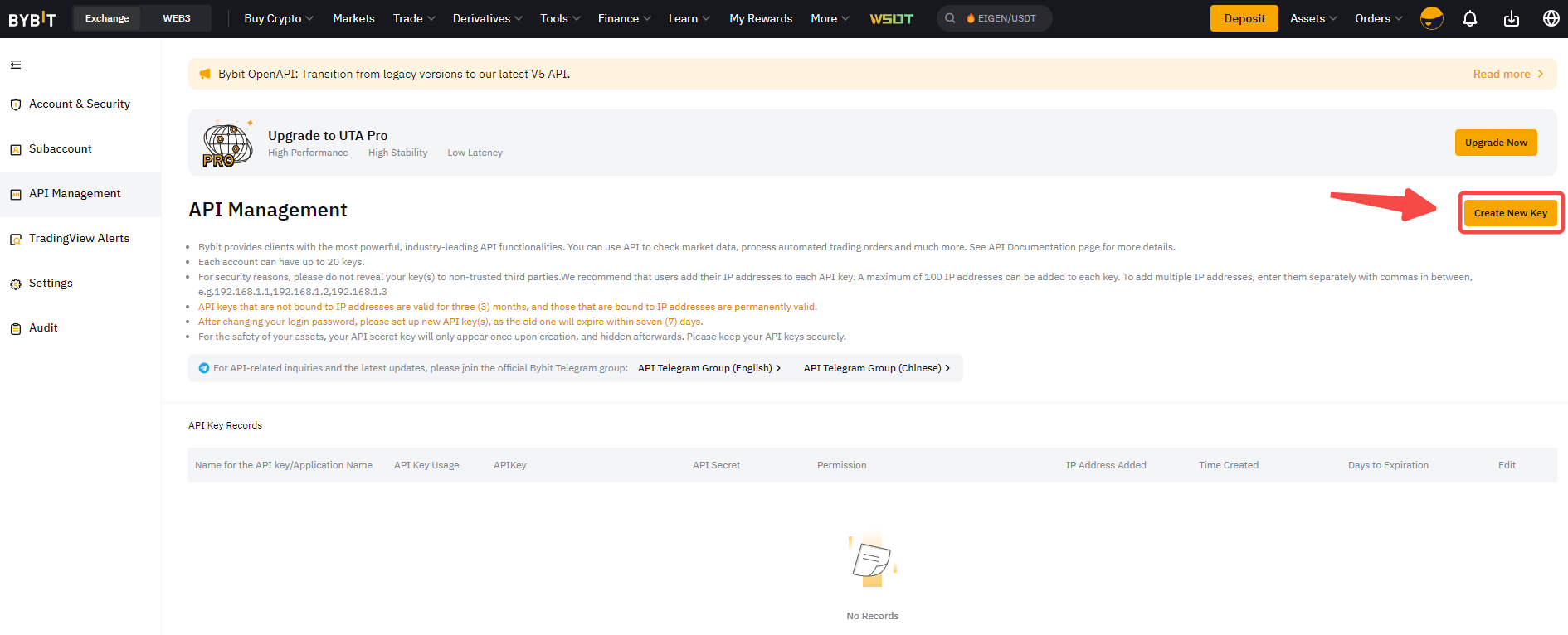
Section titled “1. Open API Management”Bybit currently creates API Keys on its website, not in the app. Open Bybit API Management, sign in, and choose Create New Key.
New accounts may need to wait 48 hours after registration before Bybit allows API Key creation.
2. Configure the key
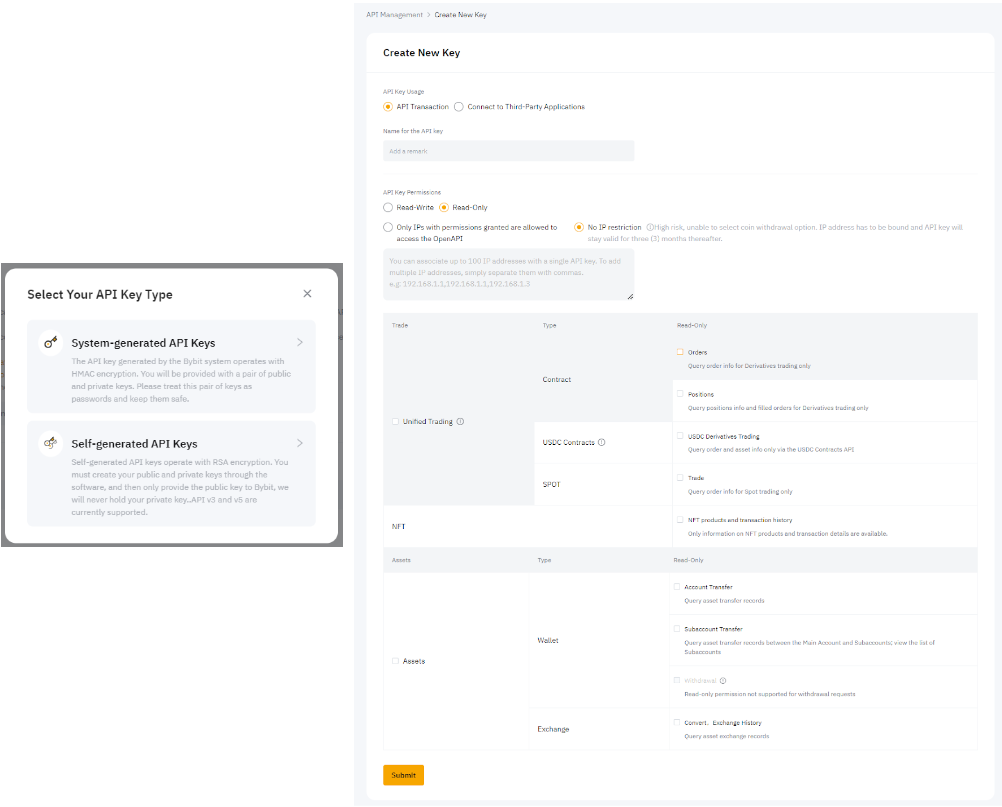
Section titled “2. Configure the key”Choose System-generated API Keys, then use these settings:
| Bybit field | Use this setting |
|---|---|
| API Key Usage | API Transaction |
| Name | TickPro |
| API Key Permissions | Read-Only |
| Contract permissions | Read access for positions and orders |
| Wallet / Assets | No transfer or withdrawal authority |
| IP restriction | Only use an IP explicitly shown by TickPro |
Complete Google Authenticator or the security check requested by Bybit.
3. Copy the two values
Section titled “3. Copy the two values”Where each Bybit value goes
Bybit API KeyTickPro API KeyBybit API SecretTickPro Secret KeyKeep the secret private. If you lose it, create a new key.
4. Connect in TickPro
Section titled “4. Connect in TickPro”- Open TickPro → Settings → Bybit.
- Tap Add account.
- Paste the API Key and Secret Key.
- Tap Save and connect. TickPro validates the credentials and reported permissions before storing the connection.